🎉 Calla - Delivery & Pickup Date is available now on Shopify app store

Shopify app store


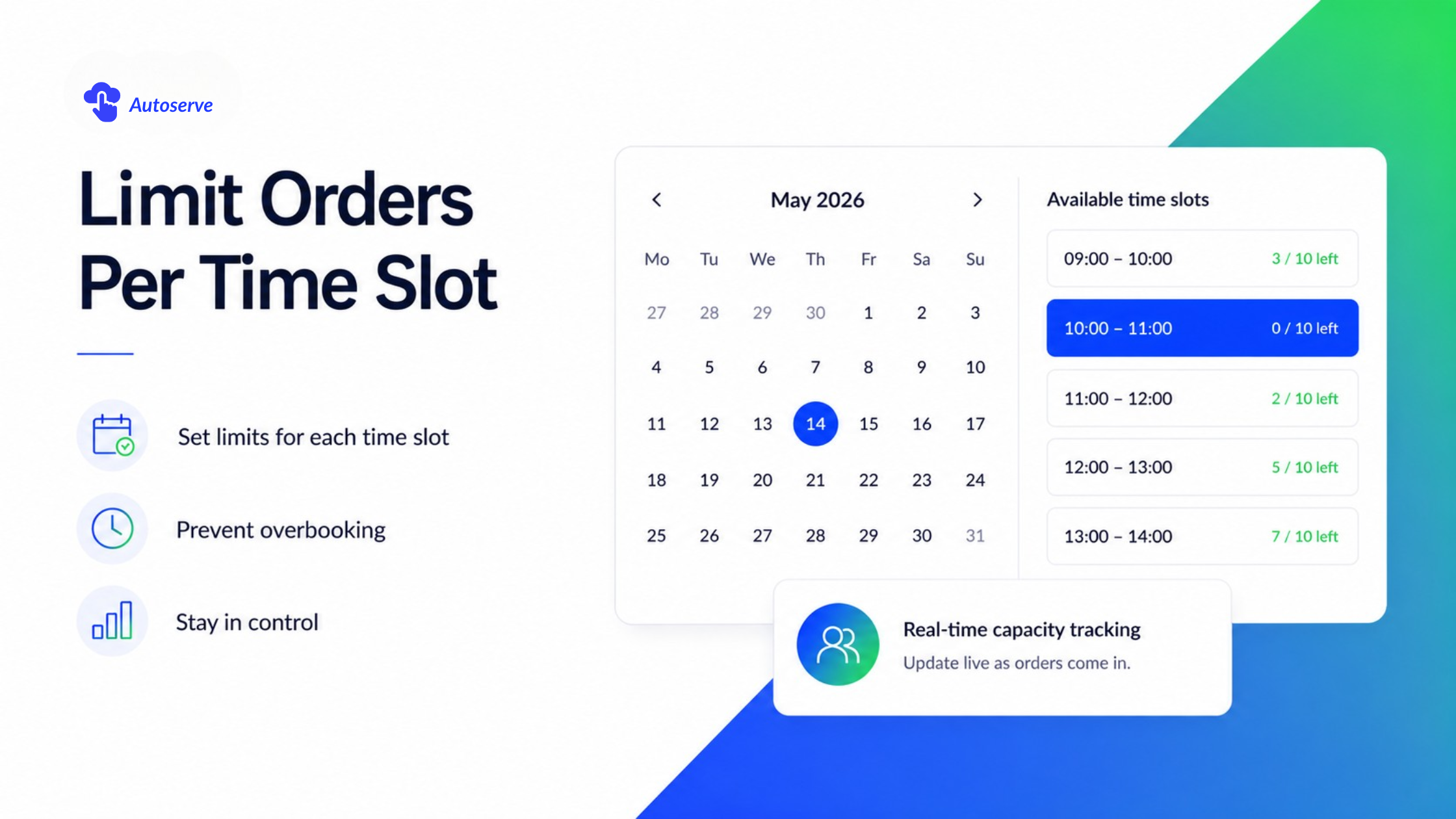
Imagine it's Saturday morning. Your bakery's Shopify store opens at 8 AM. By 8:07, you have 47 orders all scheduled for the same 10 AM pickup slot. Your team can handle 12. The phone starts ringing. Customers are angry. Half the cakes aren't ready. Two staff members quit by noon.
This isn't a hypothetical horror story. It's what happens every weekend to thousands of Shopify merchants who haven't set up order limits per time slot. And the worst part? Shopify won't warn you. It will just keep accepting orders silently, endlessly until your operation collapses under the weight of its own success.
The good news: there's a proven fix. This guide walks you through exactly how to limit orders per time slot in Shopify, which apps do it best, how to configure everything step by step, and how to avoid the setup mistakes that break the system entirely.
Shopify's native checkout offers basic delivery and pickup options. You can set delivery dates, define pickup locations, and toggle shipping methods. What you cannot do natively is:
This is a major operational gap. Shopify treats time slots as labels, not containers with limits. There's no backend logic that counts incoming orders against a slot ceiling and closes the slot when it's full. The platform was designed for physical product inventory — not time-based fulfillment capacity.
This gap isn't a secret. Shopify's own community forums are full of threads from merchants asking: "How do I stop overbooking my delivery slots?" The answer, consistently, is third-party apps.
The reason this gap exists is structural. Building dynamic, real-time slot capacity management into Shopify's core checkout would require deep changes to how checkout extensions interact with order data. Third-party app developers have effectively filled this void — and several have built impressive, production-grade solutions.
The operational damage from uncapped time slots isn't abstract. It hits differently depending on your industry, but the pattern is consistent: too many orders, not enough capacity, and customers who expect perfection.
Bakeries and cake shops carry perishable inventory. A wedding cake can't be rushed or doubled up. If you accept 30 custom orders for the same Saturday 11 AM slot and your team can produce 10, you don't just have unhappy customers. You have wasted ingredients, refund requests, and potential health code violations from rushed handling.
Flower shops face the same freshness urgency with an added logistics layer: same-day delivery routes are fixed. You can't add a second driver at 6 PM on Valentine's Day. Every overbooked slot means a wilted bouquet arriving two hours late to someone's anniversary dinner.
Furniture retailers deal with physical constraints: truck capacity, installation crew availability, and building access windows. One overbooked delivery slot means rescheduling a $2,000 sofa delivery and potentially losing the customer entirely.
The financial cost is real too. Refunds, customer service hours, expedited replacements, and reputation damage all compound over time. For a scaling Shopify store, uncapped time slots are a silent growth killer.
Since Shopify doesn't handle this natively, you need a third-party app. The good news: several strong options exist. The better news: they're not all the same, and the right choice depends heavily on your business model.
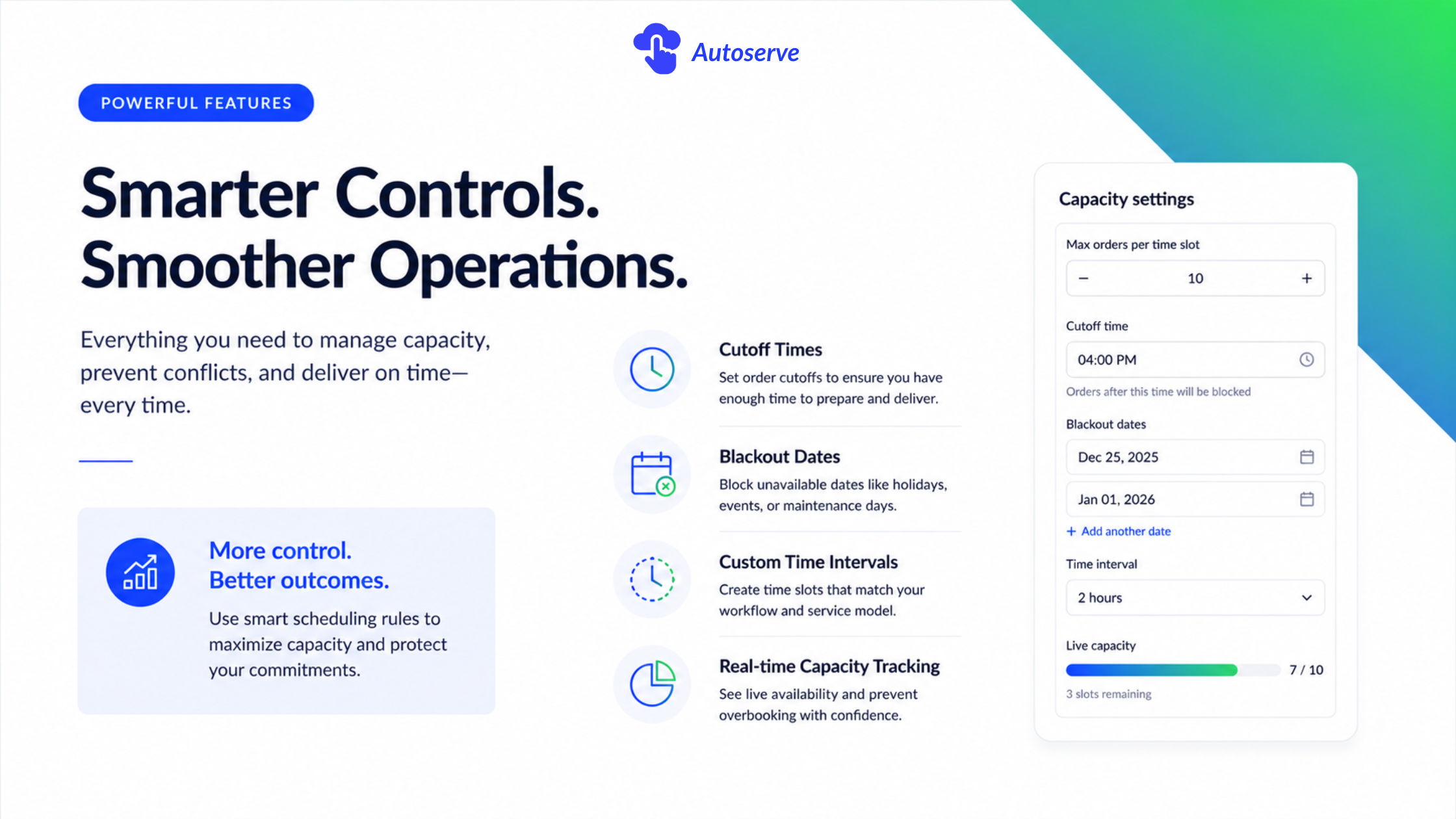
CX Elevate Date & Time Picker is purpose-built for merchants who need precise slot-level control without a steep learning curve. It combines a front-end date/time picker widget with back-end capacity rules meaning your customers see a clean, user-friendly calendar while your operations team controls exactly how many orders each window can absorb.
Key features relevant to order limiting:
CX Elevate is particularly well-suited to merchants in the food, floral, and specialty retail categories who need a reliable capacity gate at the checkout level. The app integrates directly into the product and cart pages, so customers can't complete checkout without selecting a valid, available slot.
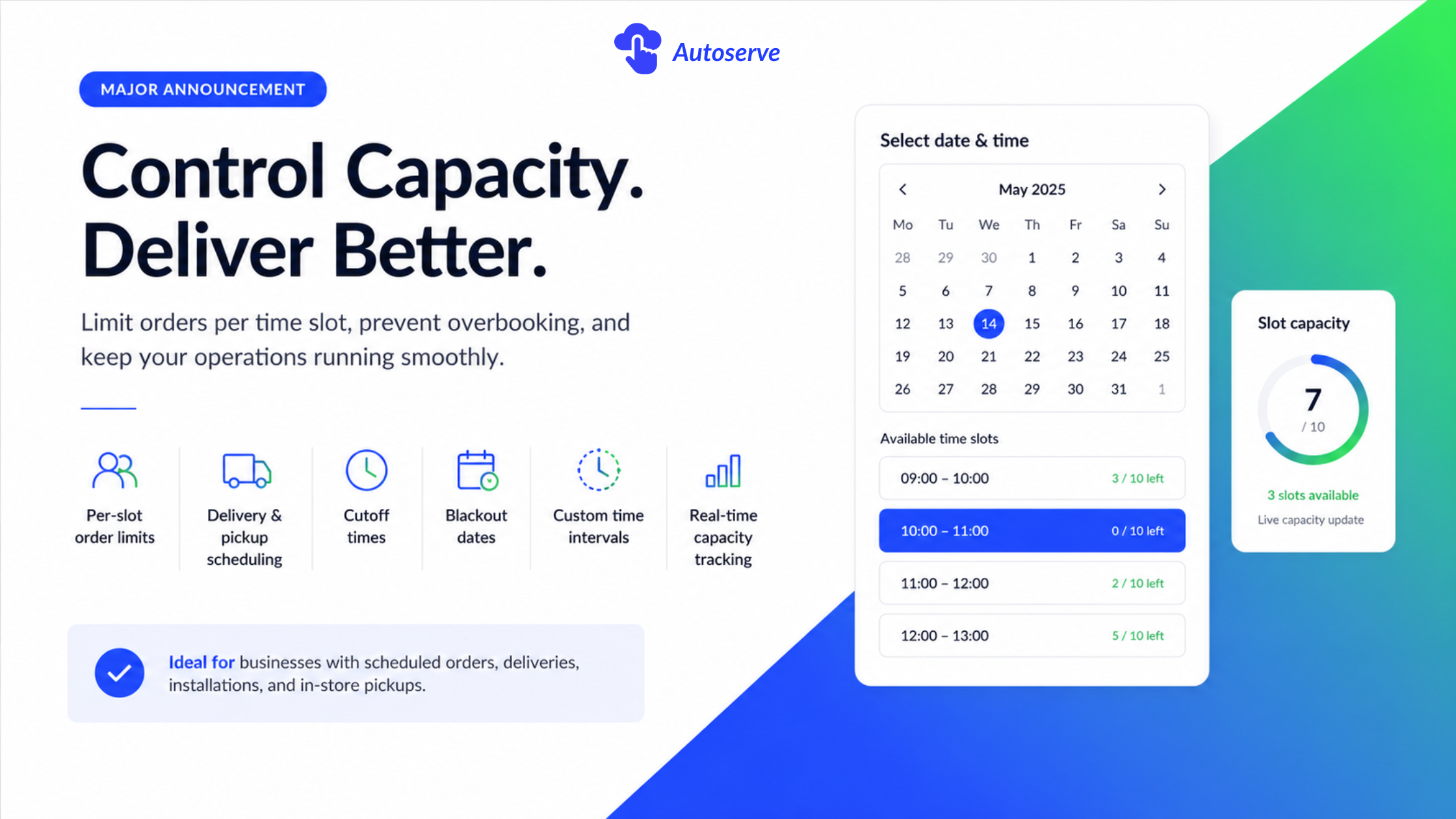
CX Elevate's delivery capacity system works through a combination of slot definition and real-time order counting. Here's the logic chain:
This dynamic availability update is what separates a true slot-capping system from a simple date picker. The real-time nature means you're never relying on manual updates or workarounds.
For merchants running separate delivery zones, CX Elevate also supports zone-based rules so your downtown delivery slots can have different capacities than your suburban routes. This is critical for logistics-heavy businesses managing driver routes alongside order volume.
One app does not fit all. The right configuration for a cake shop is completely wrong for a B2B logistics company. Here's how to match your industry's operational reality to the right app setup.
Bakeries operate on the most unforgiving time constraints in retail. A custom birthday cake has a hard delivery window. There's no "we'll reschedule." Production time is fixed. Slot management here isn't a convenience feature — it's a survival mechanism.
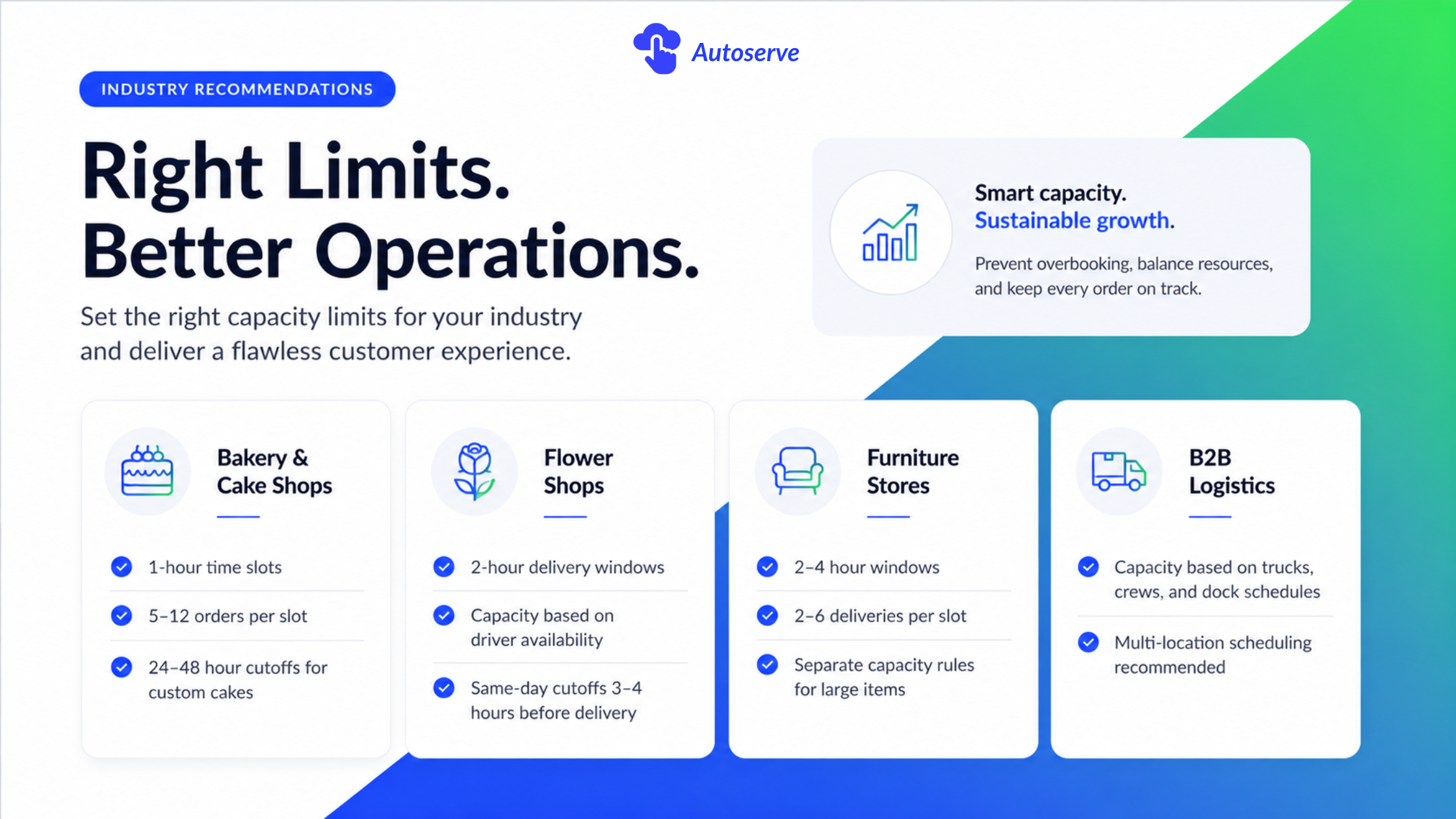
Recommended configuration for bakeries:
A well-documented case in the Shopify community describes a UK-based cake shop that implemented 10-order slot caps with 48-hour cutoffs. Within one month, customer complaint rates dropped significantly, staff overtime decreased, and the owner reported that the capping system effectively replaced an entire customer service workflow that existed purely to manage disappointed customers.
Flower shops live in a world of emotional urgency. Customers ordering for anniversaries, funerals, and Valentine's Day are not flexible about timing. A delivery that arrives four hours late isn't just disappointing, it can cause real relationship damage to your customer.
The challenge: florals are perishable, arrangement time is labor-intensive, and delivery routes are fixed by geography. You can't add capacity on the fly.
Recommended configuration for flower shops:
The key insight for florists: your slot cap should be calculated from your driver and arranger capacity, not from inventory. You may have 200 roses in stock but only the staff to arrange and deliver 40 bouquets in a given window. Cap to the operational constraint, not the inventory constraint.
Furniture delivery and B2B logistics represent the most complex scheduling environment. Here, each delivery is a multi-step event: pre-call, arrival window, installation or offloading, and signature. A single overbooked slot can cascade into a full-day breakdown.
Recommended configuration for furniture/B2B:
For B2B logistics specifically, the "slot" often isn't just a time window. It's an appointment with a loading dock, a receiving manager, and a crew. Missing it has contractual implications. Slot capping here is less about customer experience and more about contractual capacity management.
The integration between Flow and your slot-capping app depends on the app's API and webhook support. CX Elevate and Delivery Date Manager both have varying levels of Flow compatibility check each app's documentation for current integration depth.
Setting up slot limits is step one. Knowing whether they're actually solving your overbooking problem and optimizing them over time requires measurement.
Track these five metrics monthly after implementing slot limits:
Most slot-capping apps provide basic order-count-per-slot reporting. For deeper analytics, export order data to a spreadsheet or connect to a reporting tool to track these metrics over time.
Here's the hard truth most Shopify guides won't tell you: every order you accept beyond your real capacity isn't revenue. It's a debt you'll pay in refunds, reputation, and staff burnout.
The merchants who scale successfully in time-sensitive fulfillment such as bakeries, florists, furniture retailers, food delivery all share one operational discipline: they match their order intake to their real capacity, slot by slot, day by day. They don't hope for the best on a busy Saturday. They engineer the outcome.
Shopify won't do this for you. But the tools exist, they're affordable, and the setup time is measured in hours, not weeks.
Here's your action plan:
The bakery that cut its cancellations by 40% didn't do anything revolutionary. It just decided that accepting more orders than it could fulfill was no longer acceptable and built the system to match. You can do the same, this week, with the tools already available in the Shopify ecosystem.
Don't wait until your next overbooking crisis to fix this. The next rush is coming. CX Elevate is the solution that helps you replace chaos with a reliable, scalable system.
Yes. Setting your slot duration to 60 minutes effectively creates per-hour limits. Most apps including CX Elevate allow custom slot durations, so you can define 1-hour slots and apply per-slot caps that function as per-hour order limits.
Yes, but with nuance. Third-party slot-capping apps overlay Shopify's native delivery/pickup features rather than replacing them. You typically need both enabled. Shopify's native setting for rate display and shipping logic, and the app for slot selection and capacity management. Check your specific app's documentation for integration notes.
The slot disappears from the picker or shows as "Unavailable." Customers are prompted to select a different slot. There's no error message or failed checkout, the UI simply doesn't allow selection of a full slot, creating a friction-free experience that guides customers to available windows.
Yes. All major slot-capping apps support day-specific capacity rules. You can configure Monday–Friday slots at 20 orders per window and Saturday–Sunday slots at 10 per window (or vice versa for weekend-heavy businesses), with the capacity rules applying automatically based on the selected date.
We try to make easy and simple for every professionals. Get 30 days free trial - No credit card required.

